
Redbird Avionics Database Requirements
- A Redbird simulator utilizing an aircraft model with Redbird NXi avionics software.
- The Redbird simulator must be connected to the internet.
Installing Redbird Avionics Database
- Open the Navigator Main Menu and click on the Sim Management icon.
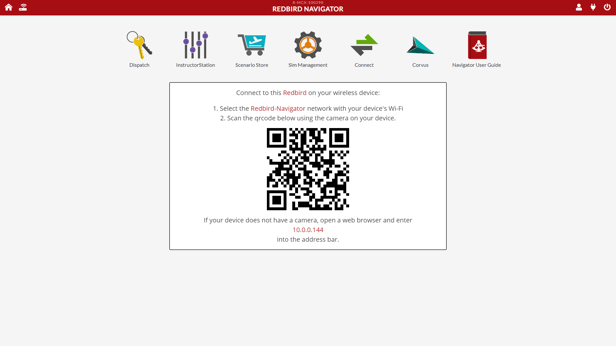
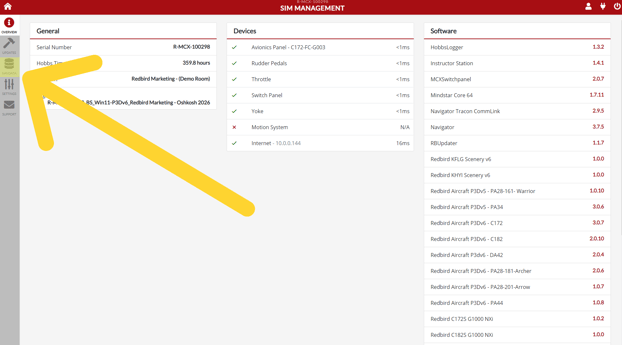
- Click on the icon labeled NAVDATA.
- Click Activate License, then enter the Activation Code provided by Redbird.
Note that if your Redbird simulator does not have any previous Redbird Avionics Database files, you will not see anything listed under Database Versions. That's ok. If you are updating your database from a previous version, you will see a list of files.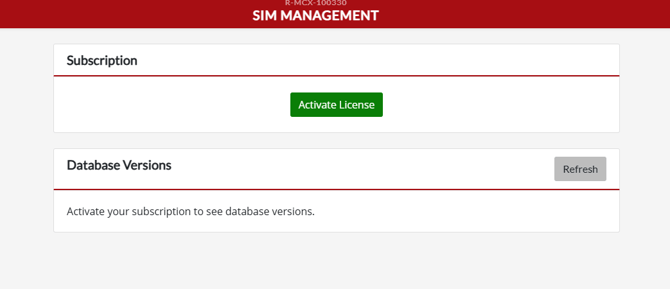
- Once you have activated your license, there should be a list of files under Database Versions. If not, click the Refresh button. If any of the listed files have a button to the right indicating that they need to be downloaded or installed, click each of those buttons until all files indicate that they are installed, as shown in this screenshot.
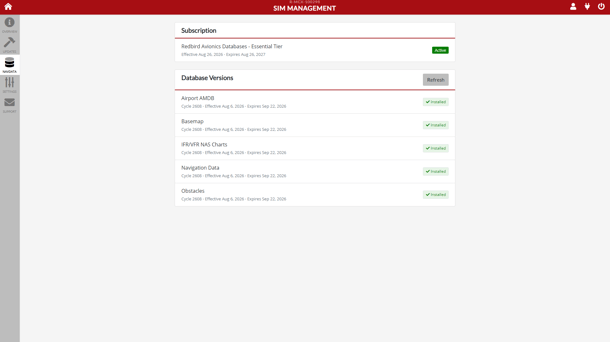
Note that future updates will only apply to specific database versions that receive an update during the new cycle.
The installation or update of your Redbird Avionics Database is now complete.
If you have any questions, please contact Redbird Support anytime 7am-6pm Central Time, Monday-Friday by calling +1 (512) 301-0718, or by sending email to support@redbirdflight.com.